
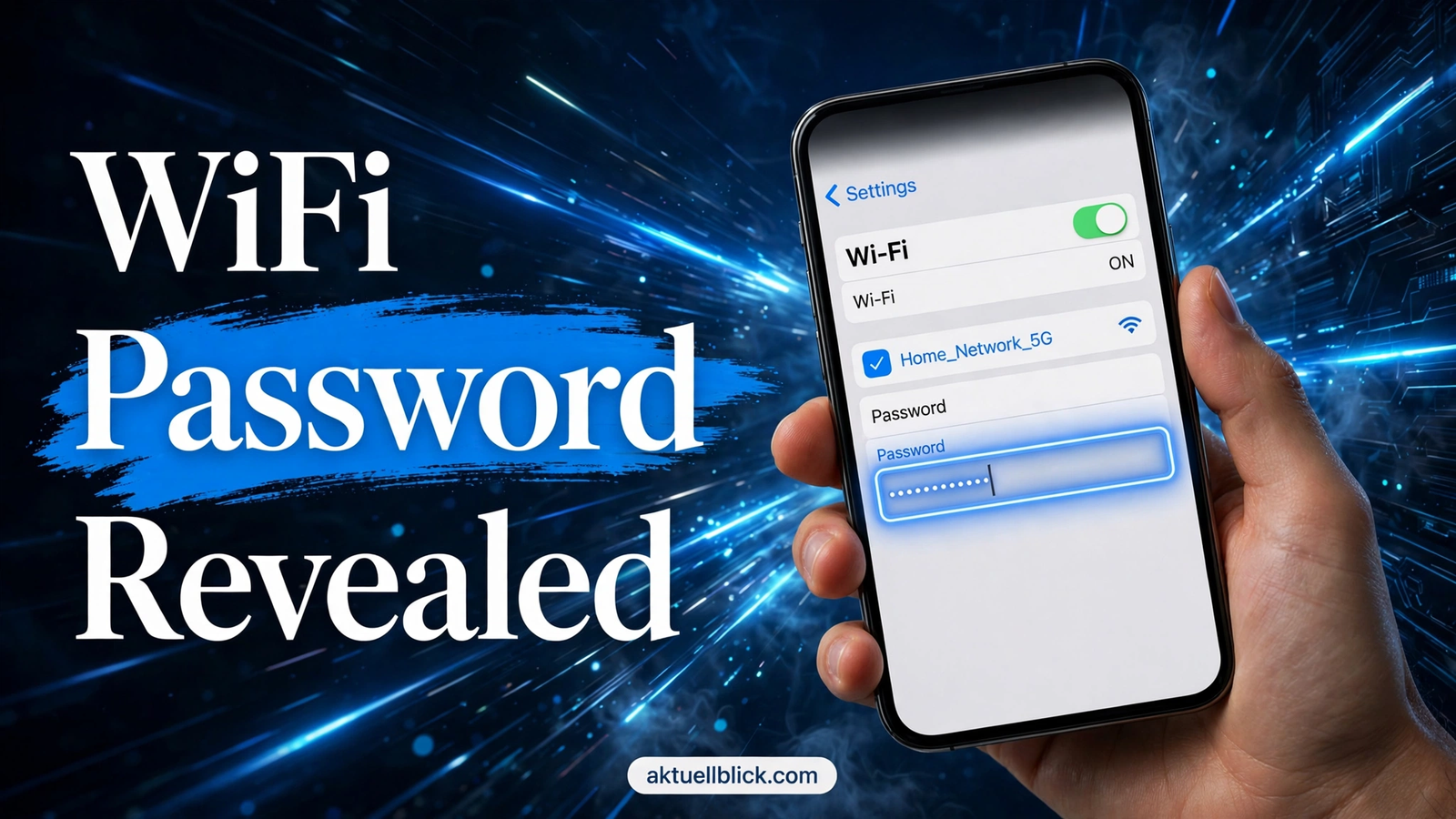

Need to share your home network with a guest, connect a new laptop, or set up a smart TV — but the password is nowhere to be found? If you’re wondering how to see wifi password on iphone, you’re in the right place. Your iPhone quietly stores the password of every Wi-Fi network you have ever joined, and since iOS 16 Apple has made it possible to view those passwords right on the device itself. No third-party apps, no jailbreaking, no complicated terminal commands.
In this guide, you’ll learn five proven methods to reveal a saved Wi-Fi password on your iPhone, from the built-in Settings trick that takes ten seconds to the router admin page that works even on older iPhones. But which method is right for you? That depends on your iOS version, the devices you own, and whether you’re currently connected to the network. Let’s walk through every option so you can pick the fastest one for your situation.
Quick answer: On iOS 16 or later, go to Settings > Wi-Fi, tap the info (i) button next to the network name, tap the hidden Password field, and authenticate with Face ID, Touch ID, or your passcode. The password appears instantly and can be copied. On iOS 18 or later, you can also open the Passwords app, tap Wi-Fi, and select the network to view or copy its password.
How to See WiFi Password on iPhone: What You Need to Know First
Before diving into the step-by-step methods, it helps to understand how your iPhone handles saved Wi-Fi passwords in the first place. Why does this matter? Because knowing where the password lives tells you exactly which method will work for you — and which ones won’t.
Every time you join a Wi-Fi network on your iPhone, iOS saves the network name and password to iCloud Keychain, Apple’s encrypted password manager. If iCloud Keychain is turned on, those credentials sync across all your Apple devices signed in with the same Apple ID. That means a password you entered on your iPhone years ago might be retrievable from your Mac, and vice versa. So what should you check first? Your iOS version. The single biggest factor in how to see wifi password on iphone is which version of iOS your device is running, because Apple only added on-device password viewing in iOS 16.
| Your iOS Version | Can You View Passwords on the iPhone? | Best Method |
|---|---|---|
| iOS 18 or later | Yes — two ways | Settings trick or the Passwords app |
| iOS 16 or iOS 17 | Yes — one way | Settings > Wi-Fi > info button > Password |
| iOS 15 or earlier | No, not on the iPhone itself | Router admin page, Mac Keychain Access, or Wi-Fi sharing |
Not sure which version you’re running? Open Settings > General > About and look at the “iOS Version” line. If your iPhone can run iOS 16 or newer and you simply haven’t updated yet, updating is the fastest long-term fix — you’ll unlock the one-tap password viewer and dozens of other improvements. Apple confirms the exact steps for every supported version in the official Apple Support guide, which is worth bookmarking if you help friends and family with their devices.
You’ll also need one of two things to authenticate: Face ID, Touch ID, or your device passcode. Apple deliberately locks saved passwords behind biometric or passcode verification so that someone who picks up your unlocked phone can’t casually read your credentials. This is a security feature, not an annoyance — keep it in mind when we talk about security tips later.
Method 1: How to See WiFi Password on iPhone in Settings (iOS 16 and Later)
This is the method most people want: fast, built-in, and works for the network you’re currently connected to as well as networks you joined in the past. If your iPhone runs iOS 16, iOS 17, or iOS 18, start here. But what does this actually mean for you in practice? It means the password you’ve been hunting through drawers and old notebooks for has been sitting in your phone the whole time.
- Open the Settings app on your iPhone.
- Tap Wi-Fi near the top of the list.
- Find the network you want the password for. If you’re currently connected to it, it will have a blue checkmark next to its name.
- Tap the small blue info (i) button to the right of the network name.
- On the network details screen, tap the Password field. It appears as a row of dots by default.
- Authenticate with Face ID, Touch ID, or your device passcode when prompted.
- The password is revealed in plain text. Tap it once to copy it to your clipboard, then paste it wherever you need it.
That’s it — the whole process takes under fifteen seconds once you know where to tap. The copy function is especially handy because Wi-Fi passwords are often long, random strings that are painful to type by hand. Copy it, paste it into a message to your guest, and you’re done.
What if you’re not connected to that network right now?
Good news: you don’t need to be connected. On iOS 16 and later, your iPhone keeps a list of every network it has joined before. To browse that list, open Settings > Wi-Fi and tap Edit in the upper-right corner. Authenticate with Face ID, Touch ID, or your passcode, and you’ll see all your known networks. Tap the info (i) button next to any of them, tap the Password field, authenticate again if asked, and the saved password appears. Have you ever joined a coffee shop’s Wi-Fi once and needed the password months later on a second visit? This is exactly the trick for that situation.
| Scenario | Can You View the Password? | What to Do |
|---|---|---|
| Currently connected to the network | Yes | Settings > Wi-Fi > tap the (i) button > tap Password |
| Joined before but not connected now | Yes (iOS 16+) | Settings > Wi-Fi > Edit > pick the network > Password |
| Network is open (no password) | Not applicable | No password field will appear at all |
| Never joined this network | No | Ask the network owner or check the router label |
| Enterprise/WPA2-Enterprise network | Usually no | These use certificates or usernames; contact your IT admin |
One more detail worth knowing: if you tap the Password field and nothing happens — no authentication prompt, no revealed password — the network is probably an open network with no password, or an enterprise network that doesn’t store a simple shared key. In that case, move on to the troubleshooting section at the end of this article.
Method 2: How to See WiFi Password on iPhone With the Passwords App (iOS 18 and Later)
With iOS 18, Apple introduced a dedicated Passwords app that gathers all your saved credentials — website logins, passkeys, verification codes, and Wi-Fi passwords — in one searchable place. If you’re running iOS 18 or later, this is arguably the most convenient way to see a saved Wi-Fi password, because you can search by network name instead of scrolling through your Wi-Fi list. So what should you try first if you’re on iOS 18? Honestly, either method works, but the Passwords app wins when you remember the network’s name and don’t want to dig through Settings.
- Open the Passwords app on your iPhone. (It’s the app with the key icon — if you can’t find it, swipe down on the Home Screen and search for “Passwords”.)
- Authenticate with Face ID, Touch ID, or your passcode. The app locks itself every time you open it, which is exactly what you want for a vault of credentials.
- Tap the Wi-Fi category on the main screen.
- Browse the list or use the search bar to find the network you want.
- Tap the network name to open its details.
- Tap the Password field to reveal it, or tap Copy Password to copy it straight to your clipboard.
The details screen also shows useful extras: the network’s security type (WPA2, WPA3, and so on), and sometimes the date it was saved. If the network was shared with you via iCloud Keychain from another device, it appears here too — which is a quiet superpower of this method.
Where is the Passwords app, and what if I deleted it?
Can’t find the Passwords app on your Home Screen? Don’t panic — a few things could explain it. First, the app only exists on iOS 18 and later; if you’re on iOS 17, you simply don’t have it, and Method 1 is your go-to. Second, like other built-in Apple apps, it can be removed from the Home Screen or deleted entirely. If you deleted it, open the App Store, search for “Passwords” by Apple, and reinstall it — your saved credentials are stored in iCloud Keychain, not in the app itself, so nothing is lost. Third, check whether you’re looking in the App Library (swipe left past your last Home Screen page) or inside a folder. Many people “lose” the app in a Utilities folder and assume it’s gone. Have you checked there yet? It’s worth a quick look before reinstalling anything.
| Feature | Settings Method (iOS 16+) | Passwords App (iOS 18+) |
|---|---|---|
| Minimum iOS version | iOS 16 | iOS 18 |
| Search by network name | No (must scroll the Wi-Fi list) | Yes — full search bar |
| View passwords for old networks | Yes, via the Edit button | Yes, all saved networks listed |
| Shows security type | No | Yes |
| Copy to clipboard | Yes | Yes, with a dedicated button |
| Authentication required | Yes | Yes |
Bottom line: on iOS 18, both methods get you the same password. Use the Passwords app when you want to search, organize, or audit your saved credentials, and use the Settings shortcut when you’re already staring at the Wi-Fi screen and want the answer in three taps.
Method 3: Share the WiFi Password With Another Apple Device
Sometimes you don’t actually need to see the password — you just need another device to join the network. Apple built a feature for exactly this: password sharing between Apple devices. If your friend with an iPhone is visiting, or you’re setting up a new iPad, you can beam the credentials over without either of you reading a single character. But what if you need the actual password text, not just a connection? Then this method has a limitation — it connects the other device but never shows you the password. Still, for the “get my guest online” scenario, it’s the fastest option of all.
Here’s how it works:
- Make sure both devices have Wi-Fi and Bluetooth turned on, and that both are signed in to iCloud.
- The other person’s Apple ID must be in your Contacts (and vice versa works best).
- Keep the two devices close together — within a few feet.
- On the new device, select your Wi-Fi network from the Wi-Fi settings screen.
- On your iPhone, a Share Password popup appears. Tap it.
- The password is sent securely, and the other device joins the network automatically.
The whole exchange is encrypted end to end, so it’s far safer than reading a password aloud or texting it. When does this method shine? House guests, family members setting up new devices, and offices where you want to grant access without broadcasting the password to the room.
| Requirement | Details |
|---|---|
| Devices | Both must be Apple devices (iPhone, iPad, or Mac) |
| Wireless radios | Wi-Fi and Bluetooth enabled on both devices |
| Accounts | Both signed in to iCloud; each Apple ID in the other’s Contacts |
| Proximity | Devices within a few feet of each other |
| Shows the password text? | No — it connects the device silently |
A common frustration: the Share Password popup never appears. The usual culprits are Bluetooth being off on one device, the devices being too far apart, or the Apple IDs not being saved in each other’s Contacts app. Double-check those three things and try again. And if you’re trying to connect a non-Apple device — a Windows laptop, an Android phone, a smart TV — this method won’t help at all, because the sharing handshake only works between Apple devices. In that case, you genuinely need the password text, so jump to Method 1, 2, 4, or 5.
Read our detailed guide on what does bop mean.
Method 4: Find the Password in Your Router’s Admin Page
What if your iPhone runs iOS 15 or older, or you simply can’t find the password anywhere on the device? Then it’s time to ask the source: your Wi-Fi router. Every router has an admin page where the current Wi-Fi password is displayed, and you can reach it from your iPhone’s browser. This method works regardless of your iOS version, which makes it the universal fallback. But does it require you to be connected to the network? Yes — you must be on the Wi-Fi network (or plugged into the router) to open its admin page, which is fine because your iPhone is presumably already connected.
- First, check the sticker on your router. Many routers print the default admin username, password, and Wi-Fi password right on the label. If nobody ever changed the Wi-Fi password, the sticker is the answer — no login required.
- If the password was changed (as it should be), find your router’s gateway address. On your iPhone, go to Settings > Wi-Fi, tap the (i) button next to your connected network, and look for the Router field — that’s the admin page address, usually something like 192.168.1.1.
- Open Safari and type that address into the address bar.
- Log in with the router’s admin username and password. These are printed on the router sticker unless someone changed them. (They’re different from the Wi-Fi password itself.)
- Navigate to the Wireless or Wi-Fi Settings section.
- Look for a field labeled Password, Passphrase, Network Key, or Pre-Shared Key. Click the “show” eye icon if the password is masked.
Can’t reach the admin page at all? The most common reason is a changed admin password that nobody wrote down. In that case, you may need to factory-reset the router (hold the reset button for 10–30 seconds), which restores the sticker credentials — but also wipes your custom settings, so treat this as a last resort. For step-by-step confirmation of the iPhone-side techniques in this guide, the official Apple Support guide at the official Apple Support guide walks through the same Settings and Passwords app steps with Apple’s own screenshots.
| Router Brand | Common Gateway Address | Default Admin Login |
|---|---|---|
| Netgear | 192.168.1.1 or routerlogin.net | admin / password |
| Linksys | 192.168.1.1 | admin / admin |
| TP-Link | 192.168.0.1 or tplinkwifi.net | admin / admin |
| Asus | 192.168.1.1 or router.asus.com | admin / admin |
| Xfinity / Comcast gateway | 10.0.0.1 | admin / password |
| Spectrum router | 192.168.1.1 | admin / (on sticker) |
| Eero / Google Nest Wifi | Managed via app, not a web page | Use the Eero or Google Home app |
A quick warning: default admin credentials like “admin / admin” are public knowledge, which is why you should change them the first time you log in. While you’re in there, it’s also a great moment to check that your network uses WPA2 or WPA3 encryption rather than the outdated WEP standard — your iPhone will actually warn you with a “Weak Security” label under the network name if it doesn’t.
What about mesh systems and ISP apps?
Modern mesh systems (Eero, Google Nest Wifi, Orbi) and many ISP-provided gateways don’t use a traditional web admin page at all. Instead, the Wi-Fi password lives in the companion app — Eero, Google Home, Xfinity, or your provider’s app. Open the app, look for Wi-Fi settings or network details, and you’ll usually find a “show password” option. Honestly, this is often easier than the browser method, so if your router came from your internet provider, check their app first. Why fight with IP addresses when the app hands you the answer in two taps?
Method 5: View the Password With Keychain Access on a Mac
Here’s a method many people overlook: if you own a Mac signed in with the same Apple ID as your iPhone — and iCloud Keychain is enabled — your Wi-Fi passwords sync to the Mac automatically. That means you can reveal an iPhone-saved Wi-Fi password from your computer, which is perfect if your iPhone runs an older iOS version or if you simply prefer working on a bigger screen. But wait — does this work if iCloud Keychain was never turned on? No. Both devices must have iCloud Keychain enabled for the sync to happen, so check that first: on iPhone, go to Settings > [your name] > iCloud > Passwords (or “Passwords and Keychain” on older versions) and make sure syncing is on.
- On your Mac, open Keychain Access. (Find it in Applications > Utilities, or press Command + Space and type “Keychain Access”.)
- In the search box at the top right, type the Wi-Fi network name.
- Double-click the network entry in the results list.
- In the window that appears, check the box labeled Show password.
- Enter your Mac administrator username and password when prompted.
- The Wi-Fi password appears in plain text next to the checkbox.
On newer versions of macOS, you can achieve the same thing through System Settings > Wi-Fi > Advanced (or the three-dot menu next to a known network), where saved networks list a “show password” option after authentication. Either path leads to the same iCloud Keychain data.
| Requirement | Why It Matters |
|---|---|
| Mac signed in with the same Apple ID | Keychain sync is tied to your Apple ID |
| iCloud Keychain enabled on both devices | Without sync, the password never reaches the Mac |
| Mac administrator password | Required to reveal any saved password |
| Network joined at least once on either device | Only saved networks appear in Keychain |
This method is a lifesaver in one specific scenario: your iPhone is on iOS 15 or older and can’t show passwords natively, but you have a Mac on the same Apple ID. Instead of resetting the router or digging through paperwork, the password is two clicks away on your computer. It’s also handy when you need to read the password aloud to someone while your phone is busy doing something else.
How to See WiFi Password on iPhone: Which Method Should You Pick?
Five methods is a lot to choose from, so let’s make the decision easy. Which one should you try first? If your iPhone runs iOS 16 or newer, Method 1 (the Settings trick) wins on speed almost every time — it’s three taps and you’re done. The other methods exist for the situations where Method 1 can’t help: older iOS versions, non-Apple devices that need the password, or routers whose passwords were changed outside the iPhone.
| Method | iOS Version Needed | Difficulty | Shows Password Text? | Works When… |
|---|---|---|---|---|
| 1. Settings > Wi-Fi > Password field | iOS 16+ | Very easy | Yes | You’ve joined the network before on this iPhone |
| 2. Passwords app | iOS 18+ | Very easy | Yes | You want to search saved networks by name |
| 3. Share with another Apple device | iOS 11+ (sharing feature) | Easy | No — connects silently | A guest with an iPhone/iPad needs quick access |
| 4. Router admin page | Any | Medium | Yes | You’re connected but the iPhone can’t show it, or iOS is old |
| 5. Mac Keychain Access | Any (needs a Mac) | Easy | Yes | iCloud Keychain syncs to a Mac on the same Apple ID |
Notice the pattern: Methods 1 and 2 answer “how to see wifi password on iphone” directly on the device, while Methods 3–5 are workarounds for edge cases. In practice, roughly nine out of ten readers will solve their problem with Method 1 alone. Still, knowing the full toolkit means you’re never stuck — and you can help friends whose phones run older software.
- Fastest overall: Method 1 — Settings trick (about 15 seconds).
- Best for searching old networks: Method 2 — Passwords app on iOS 18.
- Best for guests: Method 3 — wireless sharing, no password exposed.
- Best universal fallback: Method 4 — router admin page works on any iOS version.
- Best if your iPhone is old but your Mac is synced: Method 5 — Keychain Access.
Troubleshooting: Why Can’t I See the WiFi Password on My iPhone?
Followed the steps and still can’t see the password? Don’t worry — there’s almost always a logical explanation, and most of them take less than a minute to fix. Let’s run through the most common problems as quick questions and answers.
Why is there no Password field when I tap the info button?
If the network details screen shows no Password row at all, the most likely reason is that the network is open — it has no password, so there’s nothing to display. Coffee shops, airports, and hotels sometimes run open networks (or use a captive portal login page instead of a Wi-Fi password). The second possibility is an enterprise network (common at offices and universities) that authenticates with a username or certificate rather than a shared password. In neither case is anything broken — there’s simply no password to reveal.
Why does my iPhone ask for authentication but then show nothing?
This usually means the authentication didn’t complete — Face ID failed silently, or you cancelled the prompt. Try again and watch for the Face ID animation. If Face ID consistently fails, fall back to your device passcode: after a failed Face ID attempt, iOS normally offers “Enter Passcode” as an option. Also check that a passcode is actually set (Settings > Face ID & Passcode); without one, the password viewer can’t verify it’s really you.
I tapped Edit in Wi-Fi settings, but my old network isn’t listed. Why?
Three common reasons. First, you may have tapped “Forget This Network” at some point — forgotten networks are deleted from the saved list along with their passwords. Second, iCloud Keychain might be off, so networks saved on another device never synced to this iPhone. Third, if you restored this iPhone from a backup without encrypted backup enabled, saved Wi-Fi passwords may not have carried over. In all three cases, the router admin page (Method 4) is your best next step.
The Share Password popup never appears on my iPhone. What’s wrong?
Run through this checklist: Wi-Fi on for both devices? Bluetooth on for both? Both signed in to iCloud? Devices within a few feet? Each person’s Apple ID saved in the other’s Contacts app? If everything checks out, try toggling Wi-Fi off and on again on the joining device and re-selecting the network. Personal Hotspot being active on the sharing iPhone can also interfere — turn it off temporarily.
I can’t log in to my router’s admin page. Now what?
First, make sure you’re using the admin credentials, not the Wi-Fi password — they’re different things, and mixing them up is the number one cause of failed router logins. Check the sticker on the router for the defaults. If someone changed the admin password and forgot it, a factory reset restores the defaults (hold the reset pinhole for 10–30 seconds), but remember this erases all custom settings including your Wi-Fi name and password — you’ll need to set everything up again. When in doubt, call your internet provider: they can often reset or retrieve the credentials remotely.
| Problem | Likely Cause | Fix |
|---|---|---|
| No Password field in network details | Open or enterprise network | Nothing to fix — no shared password exists |
| Authentication prompt fails | Face ID/Touch ID not completing | Use device passcode instead |
| Old network missing from Edit list | Network was forgotten or never synced | Use router admin page or Mac Keychain |
| Share Password popup missing | Bluetooth off, too far apart, or Contacts missing | Check the five requirements in Method 3 |
| Router login rejected | Using Wi-Fi password as admin password | Use sticker admin credentials; reset if changed |
| Password field shows but copy doesn’t work | Temporary UI glitch | Close and reopen Settings, then try again |
Security Tips for Viewing and Sharing WiFi Passwords
Being able to see your Wi-Fi password in seconds is convenient — but that convenience cuts both ways. Anyone who can unlock your iPhone can now read your network credentials just as easily as you can. So how do you enjoy the convenience without creating a security hole? A few simple habits cover nearly all the risk.
- Keep a strong device passcode. Your Wi-Fi passwords are only as safe as your lock screen. A six-digit (or alphanumeric) passcode plus Face ID or Touch ID means a stranger who grabs your phone can’t tap through to your credentials.
- Don’t screenshot passwords and leave the image in your camera roll. Screenshots get backed up to iCloud Photos and are easy to stumble across. If you must save a password, put it in the Passwords app or a dedicated password manager — never in Notes, Photos, or a text message thread.
- Prefer sharing over showing. When a guest needs access, use Method 3 (Apple’s wireless sharing) instead of reading the password aloud. The fewer people who know the actual password, the fewer people can share it onward.
- Change default router credentials. If your router still uses “admin / admin” for its admin page, anyone on your network could change your Wi-Fi password or snoop on settings. Change it the first time you log in.
- Use WPA2 or WPA3 encryption. If your iPhone shows a “Weak Security” warning under your network name, your router is using outdated encryption (WEP or WPA). Upgrade it in the router’s wireless settings — weak encryption makes the password itself almost irrelevant to an attacker.
- Set up a guest network. Most modern routers let you create a separate guest Wi-Fi network with its own password. Guests get internet access without ever touching your main network password — and you can change the guest password anytime without reconnecting all your own devices.
- Rotate your Wi-Fi password occasionally. Moved out a roommate? Had a house full of party guests on the main network? Changing the password takes five minutes in the router admin page and instantly revokes everyone you previously shared it with.
One more question people often ask: is it legal to look up a Wi-Fi password this way? Viewing passwords saved on your own device, for networks you were given access to, is completely fine — that’s what the feature is for. What’s not fine is using these techniques to access networks without permission. When in doubt, ask the network owner. It’s faster than any workaround and keeps you on the right side of both the law and basic courtesy.
FAQs About How to See WiFi Password on iPhone
Still have questions? Here are the ones readers ask most often, answered directly.
Can I see the WiFi password on iPhone without Face ID?
Yes. When the authentication prompt appears, you can choose to enter your device passcode instead of using Face ID or Touch ID. The biometric step is just the fastest option — the passcode works identically. What you can’t do is skip authentication entirely; Apple requires proof that it’s really you before revealing any saved credential.
Does this work for WiFi networks I’ve never connected to?
No. Your iPhone can only show passwords for networks it has actually joined and saved. It can’t discover or reveal the password of a nearby network you’ve never used. For a brand-new network, you need the password from the owner, the router sticker, or the router’s admin page.
Where do I find WiFi passwords for my iPhone on iOS 15?
iOS 15 and earlier have no built-in password viewer, so your options are the router admin page (Method 4), Mac Keychain Access with iCloud Keychain sync (Method 5), or Apple’s device-to-device sharing (Method 3) to get other Apple devices online. The most future-proof fix is updating to a newer iOS version if your iPhone supports it.
Can I see the WiFi password of a hotel or coffee shop network?
If you joined it on your iPhone and it used a standard Wi-Fi password (not a captive-portal web login), then yes — it will appear in your saved networks list like any other. Networks that authenticate through a browser login page rather than a Wi-Fi password won’t have a password field to reveal, because no Wi-Fi password was ever entered.
Will viewing the password disconnect me from WiFi?
No. Viewing or copying a saved password is a read-only action — it doesn’t change anything about your connection. You stay connected the entire time. The same goes for the Passwords app: browsing your saved credentials never disturbs your active connections.
Can someone see my WiFi password from my locked iPhone?
Not through these methods. Every viewing path requires unlocking the iPhone first and passing a second authentication (Face ID, Touch ID, or passcode). That’s exactly why a strong passcode matters: your lock screen is the gatekeeper for everything in this guide.
Is there a way to see the WiFi password on iPhone without the password field appearing?
If no password field appears for a network you know has a password, try the Edit view (Settings > Wi-Fi > Edit) to reach its details page directly — occasionally the field only renders there. If it’s still missing, the entry may be corrupted; forgetting the network and rejoining it (you’ll need the password one more time from the owner or router) usually restores the viewer.
| Question | Short Answer |
|---|---|
| Minimum iOS for on-device viewing? | iOS 16 |
| Minimum iOS for the Passwords app? | iOS 18 |
| Do I need to be connected to view it? | No — saved networks work too |
| Can apps read my WiFi password? | No — iOS gives apps no API for this |
| Does sharing reveal the password text? | No — the other device just connects |
Conclusion
Learning how to see wifi password on iphone is one of those small skills that pays off again and again. The headline method couldn’t be simpler: on iOS 16 or later, open Settings > Wi-Fi, tap the info button next to any saved network, tap the Password field, and authenticate — the password appears in seconds, ready to copy. iOS 18 users get the added convenience of the Passwords app with full-text search, while owners of older iPhones can fall back on the router admin page or Mac Keychain Access. Whichever path you take, remember the security basics: guard your lock screen, prefer wireless sharing over reading passwords aloud, and consider a guest network for visitors. Now the next time someone asks for your Wi-Fi password, you won’t have to dig through a drawer — the answer is already in your pocket.
Read our detailed guide on why do we dream.


[…] Read our detailed guide on how to see wifi password on iphone. […]
[…] Read our detailed guide on how to see wifi password on iphone. […]