
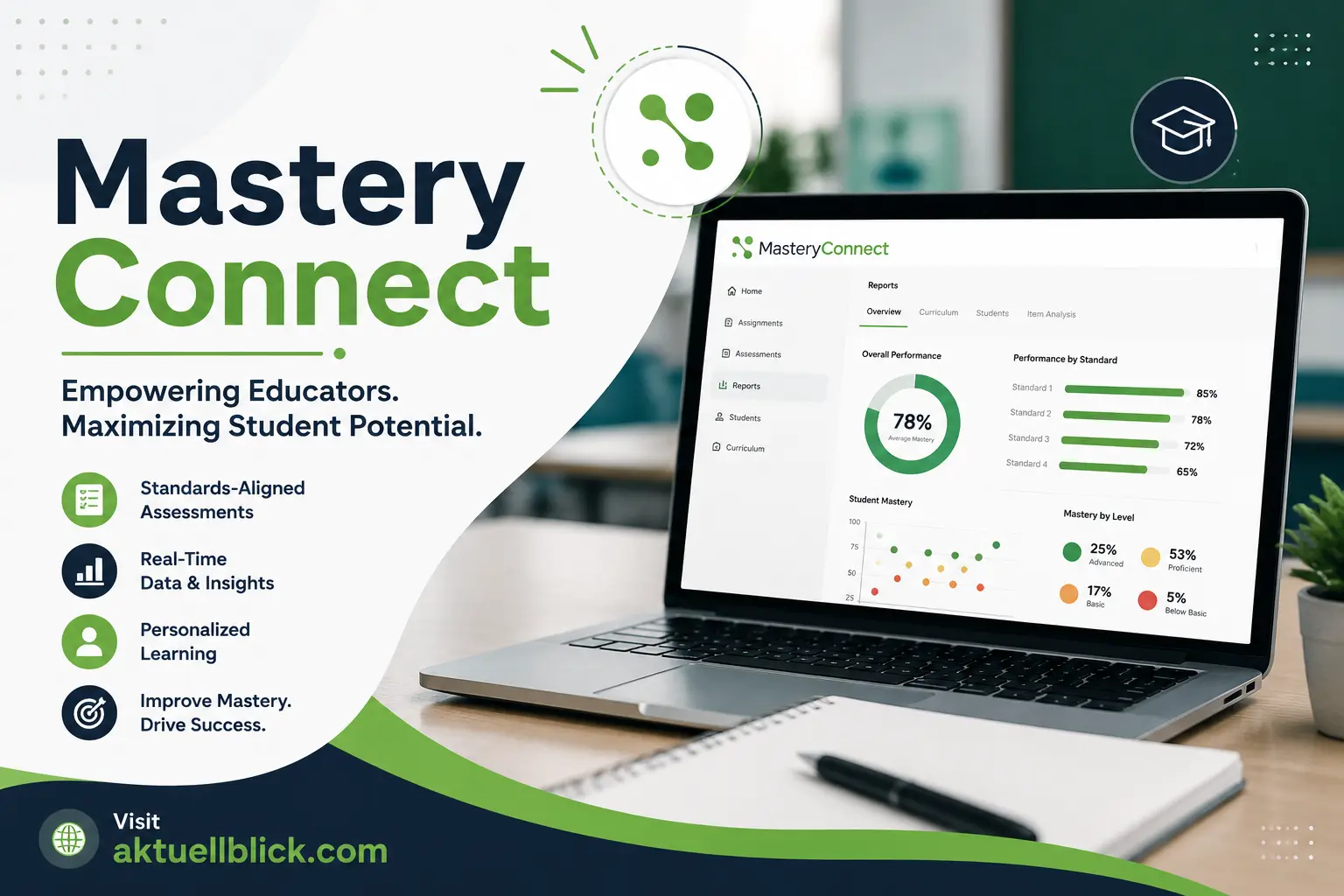

Mastery Connect is a K–12 digital assessment management system designed to help schools measure what students know, identify learning gaps, and track progress against academic standards. Instead of relying only on a final test score, it gives educators a clearer view of how well each student is performing on specific standards and skills.
For a new student, teacher, or parent, Mastery Connect can initially seem confusing because it includes different portals, assessments, Test IDs, trackers, mastery levels, login methods, and integrations. Once the basic workflow is clear, however, the system becomes much easier to use.
Students may use the student portal to take assigned assessments and review available results. Teachers can create or deliver assessments, monitor standards mastery, review performance data, and decide where students need additional support. Parents may also receive access to a separate parent portal when their school or district enables it.
This guide covers the complete process from sign-in and Test IDs to benchmark testing, mastery trackers, Canvas integration, student scores, accommodations, troubleshooting, and privacy. It is written for beginners, so you do not need previous experience with an assessment management system to follow it.
What Is Mastery Connect?
Mastery Connect is an assessment platform from Instructure built mainly for K–12 schools. Its purpose is to connect assessment results with specific learning standards so teachers can determine which skills students have mastered and where additional instruction may be needed.
A normal test might tell a teacher that a student earned 78 percent. A standards-based assessment goes further. It can show that the student has demonstrated mastery in one standard, is close to mastery in another, and needs remediation in a third. This makes the assessment data more useful for day-to-day teaching.
The platform supports several important education workflows, including:
- Formative assessment
- Benchmark assessment
- Standards mastery tracking
- Student progress monitoring
- Item-based testing
- Document-based testing
- Online assessment delivery
- Bubble sheet assessment
- Teacher reporting
- Parent progress visibility
- Canvas LMS integration
The system is not simply an online test maker. Its main value comes from connecting assessment evidence to academic standards and organizing that information inside a visual mastery tracker.
Why do schools use an assessment management system instead of ordinary quizzes? The main reason is that schools often need more than a percentage. Teachers and administrators need to know whether instruction is helping students meet required standards across a course, grade level, subject, or assessment period.
How Mastery Connect Works
The basic workflow begins with academic standards. A teacher typically works with a tracker that contains the standards being taught in a particular class or course. Assessments are then connected to those standards so student performance can be measured against them.
A simplified workflow looks like this:
- A course or tracker is created or assigned.
- Academic standards are connected to the tracker.
- The teacher selects or creates an assessment.
- The assessment is connected to one or more standards.
- Students complete the assessment.
- Responses are scored.
- Results appear in the mastery tracker.
- The teacher reviews performance by student and standard.
- Instruction can be adjusted based on the results.
This is why the mastery tracker is such an important part of the platform. Instead of teachers manually comparing several spreadsheets or individual test reports, the tracker brings standards mastery data into one place.
Depending on the school setup, students may access testing through a student portal, a browser-based Test ID process, Canvas LMS, or another school sign-on system. The exact route can therefore be different from one district to another.
Does every student see exactly the same interface? Not necessarily. Available options depend on the school’s configuration, assessment settings, integrations, and permissions. A student using Canvas may have a different entry path from a student who receives a Test ID directly from a teacher.
Mastery Connect Login
The correct login method depends on how the school or district has configured accounts. Some users sign in with platform credentials, while others use a connected authentication service.
Common sign-in methods can include:
- Username or email and password
- Google account
- Clever login
- ClassLink login
- School or district single sign-on
- Canvas access for connected courses
A student should normally follow the method provided by the school rather than creating or trying different accounts independently. Using the wrong sign-in option is one of the most common reasons users think their account is missing.
Staff members who sign in are taken to the main educator environment. Students are directed to the student experience, while parents with an activated account can reach the parent portal.
If credentials are rejected, first check the spelling of the email or username, keyboard capitalization, school account being used, and selected login provider. A personal Google account, for example, may not work if a district has connected only managed school accounts.
Mastery Connect Student Login
The student login process depends largely on the school’s authentication setup. Some students receive direct account credentials, while others enter through Google, Clever, ClassLink, Canvas, or a district launchpad.
When using a school-provided sign-in method, students should use their official school credentials. They should avoid switching to a personal email account unless the teacher or district specifically instructs them to do so.
A typical student sign-in process involves:
- Opening the school’s approved access method
- Selecting the correct student account
- Completing authentication
- Entering the student portal or connected LMS course
- Opening the assigned class or assessment
Students may also take certain assessments by using a Test ID and student ID instead of signing into the full portal.
What should a student do if the student portal opens but no assessment appears? First check whether the correct class is selected. The teacher may also need to make the assessment available. An assessment that has not been delivered or released will not necessarily appear just because the student can access the account.
Another common issue is entering through the wrong school account. Students who belong to districts using managed Google accounts should confirm that the browser is not automatically signed into a personal Google profile.
Mastery Connect Teacher Login
Teachers generally access the educator side of the platform using credentials or a school-configured authentication option. Depending on the district, that could be a direct account, Google, Clever, ClassLink, SSO, or an integrated Canvas environment.
Once signed in, teachers can work with classes, trackers, standards, assessments, student data, scoring, and reporting options that have been enabled for their role.
A teacher’s available functions can vary because permissions are often controlled at the institution or district level. For example, a classroom teacher may be able to deliver a benchmark assessment without having permission to create or modify district-wide benchmark content.
Teachers should also understand that roster information may come from a Student Information System or another integration. If a student is missing from a class, simply refreshing the assessment may not solve the problem. The roster source may need to be corrected.
Why might a teacher see a different screen from an online tutorial? Platforms change over time, and some organizations may also be using different views, configurations, integrations, or permissions. Always work from the controls visible in the current account rather than assuming every district has an identical setup.
Mastery Connect Parent Login
Parents and guardians may be able to view student progress when the school has enabled parent access and activated an account for them.
A parent generally needs an invitation or welcome process connected to the student’s school information. After activation, the parent creates the required account details and can then use the available sign-in method.
Depending on district configuration, sign-in options may include a direct account or connected services such as Google, Clever, or ClassLink.
The parent experience is designed for monitoring rather than administering assessments. Parents should expect to view relevant student information rather than the teacher tools used to create tests or manage instructional data.
If a parent never receives an expected activation message, useful checks include:
- Look in spam or junk folders.
- Confirm the email address provided to the school.
- Ask whether parent access has been enabled.
- Ask whether the parent account has actually been activated.
- Avoid creating duplicate accounts without school guidance.
Parent access is especially useful because standards mastery can provide more context than a single overall grade.
Mastery Connect Student Portal
The student portal is the student-facing environment used to access classes, available assessments, and progress information when those features have been enabled.
Students may be able to open an assessment directly from the portal rather than entering a new test code each time. This provides a more organized experience for classes that regularly use digital assessment.
When an assessment becomes available, students can open it, read questions, select or enter responses, use permitted testing tools, and submit answers when finished.
The student experience may also display progress by academic standard. This is different from looking only at an overall percentage because students can identify individual skills that are mastered or still developing.
Can students always see their score after submitting? No. Score visibility depends on assessment settings. A teacher may choose whether results are shown immediately. If score display is enabled, students may see information such as total points, percentage correct, standards connected to the questions, and mastery information for individual standards.
Students should review everything before final submission. Once an assessment has been submitted, reopening it may not be available.
How to Use a Mastery Connect Test ID
A Test ID is a code that allows students to open an assessment that a teacher has delivered. It is particularly useful when students are taking a test through a browser instead of locating it inside a full student account.
The usual process is straightforward:
- Get the Test ID from the teacher.
- Open the student assessment page approved by the school.
- Enter the Test ID.
- Enter the requested student identification information.
- Confirm that the correct assessment appears.
- Begin only when instructed by the teacher.
Teachers can obtain the appropriate code from the assessment delivery area connected to the tracker. Because Test IDs belong to particular assessment sessions or delivery settings, students should not reuse codes from older assignments unless instructed.
Why is a Test ID not working? Several causes are possible. The code may have been typed incorrectly, the wrong assessment may have been selected, the testing window may not be active, or the teacher may need to review delivery settings.
Students should not repeatedly guess codes. If the correct Test ID fails, the fastest solution is usually to tell the teacher exactly what appears on screen.
A Test ID should also be treated as classroom assessment information. Students should not publish active testing codes publicly or send them to people outside the class.
Mastery Connect Assessments Explained
The platform supports two broad instructional purposes: formative assessment and benchmark assessment.
A formative assessment is normally used during instruction. It helps a teacher check student knowledge at a particular point and decide what needs to happen next. These assessments may cover one or several standards.
A benchmark assessment is generally broader. It is designed to measure progress across multiple standards and may be used by a school or district at planned points in the academic year.
Assessments can also be categorized by how their content is built.
Item-based assessment: Questions are assembled from available item banks. This format can support digital testing features and, where available, enhanced tools and accommodations.
Document-based assessment: An external assessment document is uploaded and used as the basis of the test. Students may enter responses through an online bubble sheet, but some digital accommodation features available to item-based tests may not work in the same way.
Assessments may be delivered online or through supported offline workflows such as bubble sheets. This flexibility allows schools to use the platform even when every assessment is not created as a fully digital test.
The important idea is that assessment results are connected back to standards mastery rather than being treated as isolated scores.
Mastery Connect Benchmark Assessment
A benchmark assessment measures student performance across a broader group of standards. Schools often use benchmarks periodically to determine whether students are progressing toward expected learning goals.
Unlike a quick classroom check, a benchmark may be created or controlled at a higher organizational level. Teachers can then deliver the approved assessment to their students through the relevant tracker.
Benchmark testing can help answer questions such as:
- Which standards are students mastering across the grade?
- Which standards need reteaching?
- Are several classes experiencing the same learning gap?
- Has performance improved since the previous assessment period?
- Which students may need additional support?
- Which students are ready for enrichment?
The benchmark assessment should not be interpreted as the complete picture of a student’s ability. It is one source of educational evidence. Attendance, classwork, projects, teacher observations, and other assessments can provide additional context.
For educators, the real value comes after the test. A benchmark produces useful information only when results are reviewed and used to guide instruction.
Is a benchmark the same as a final exam? Not necessarily. A benchmark is primarily designed to measure progress against selected standards at a particular point in time. Its role, timing, and grading impact depend on the school or district.
Mastery Connect Tracker
The mastery tracker is the central visual workspace for following student performance against academic standards.
A tracker typically organizes standards and student results so teachers can quickly identify patterns. Instead of opening every student’s test individually, the teacher can review mastery information across the class.
The tracker may show:
- Students enrolled in the class
- Standards assigned to the course
- Assessments connected to each standard
- Student performance by standard
- Mastery levels
- Benchmark assessments
- Multi-standard assessments
- Available analytics or filters
This makes the tracker valuable for standards-based learning. A teacher can identify whether one student needs help with a particular skill or whether most of the class struggled with the same standard.
For example, imagine that 24 students complete an assessment covering four standards. If results show strong performance on three standards but weak performance on the fourth, the teacher has a clear reason to revisit that specific learning goal.
Teachers may also be able to filter or customize tracker displays depending on their system setup. These controls help reduce visual clutter when a course contains many standards and assessments.
For the latest updates and insights, explore Ocular Migraine today.
Mastery Connect Scores and Mastery Levels
Assessment scores and mastery levels answer related but different questions.
A percentage tells you how many points a student earned on an assessment. A mastery level focuses on how well the student demonstrated knowledge of a specific standard.
This distinction matters because two students with similar overall percentages may have different strengths and weaknesses.
Trackers commonly use visual mastery indicators to make performance easier to scan. Traditional configurations often represent results using categories such as remediation, near mastery, and mastery, sometimes displayed through red, yellow, and green indicators. However, schools can have different scoring rules or mastery cut points.
Students should therefore avoid assuming that a particular percentage always equals the same mastery category in every class.
What does a green result mean? In a typical three-level configuration, green represents mastery. Yellow generally represents near mastery, while red indicates that remediation or additional support may be needed. The exact thresholds should still be confirmed with the teacher or school.
Teachers can use standards mastery data to form small groups, plan reteaching, provide targeted practice, or identify students who are ready for more advanced work.
Mastery Connect for Teachers
For teachers, the platform is most useful when assessment data leads to an instructional decision.
The workflow is not simply “give a test and record a score.” Teachers can connect assessments to standards, deliver them to students, review results, and use mastery patterns to determine what should be taught next.
Common teacher activities include:
- Managing trackers
- Reviewing student rosters
- Selecting standards
- Creating or finding assessments
- Delivering assessments
- Reviewing student responses
- Monitoring mastery levels
- Using reporting and analytics
- Adjusting tools and accommodations
- Identifying students who need intervention
- Planning reteaching or enrichment
A strong classroom workflow uses formative assessment frequently enough to detect learning gaps before they become larger problems.
For example, a teacher could assess one standard after several lessons. If most students demonstrate mastery, instruction can move forward. If a large portion of the class remains below mastery, the teacher has evidence that another explanation, activity, or practice session may be necessary.
The platform can also reduce duplicated work when connected with Canvas LMS because assessment and course workflows can share information.
Mastery Connect for Students
Students use the system mainly to complete assessments and review learning progress where those options are enabled.
Before beginning an assessment, students should confirm that they are in the correct class and opening the correct test. During testing, they should follow teacher instructions and use only the tools or accommodations provided to them.
A good student testing routine is:
- Sign in using the approved school account.
- Confirm the assessment name.
- Read every instruction before answering.
- Use permitted testing tools when needed.
- Review unanswered questions.
- Check responses before submitting.
- Submit only when the assessment is complete.
Students should also pay attention to standards-level feedback when it is available. A lower mastery result does not simply mean “bad score.” It identifies a skill that may need more practice.
Can a student change answers after submitting the assessment? Students should assume final submission ends their attempt unless a teacher specifically says otherwise. It is therefore important to review responses before selecting the final submission option.
This approach turns assessment results into useful learning feedback instead of treating them only as grades.
Mastery Connect Parent Portal
The parent portal allows eligible parents or guardians to monitor student mastery information without giving them teacher-level access.
Once an account has been activated, a parent may be able to review a student’s classes, standards progress, assessment-related information, or other data made available by the school.
One of the biggest advantages of standards-based reporting is context. An overall grade might tell a parent that a student is earning a B, but mastery information can show which particular academic skills are secure and which remain difficult.
Parents can use this information to have more useful conversations with teachers.
Instead of asking only, “Why is the grade low?” a parent can ask:
- Which standard is causing the most difficulty?
- Is the student improving over time?
- What skill should be practiced at home?
- Is the issue limited to one assessment?
- Does the student need reteaching or additional practice?
Parents should remember that account availability is controlled by the educational organization. If the portal cannot be accessed, the school or teacher is usually the appropriate first contact.
Mastery Connect and Canvas Integration
Canvas LMS integration can make assessment workflows more convenient for schools already using Canvas for teaching and course management.
When the integration has been configured by the institution, a mastery tracker can be linked with a Canvas course. Teachers may then work with assessment and mastery information without constantly switching between completely separate workflows.
A connected teacher workflow can include:
- Opening a Canvas course
- Accessing the linked mastery tracker
- Adding or creating an assessment
- Creating a corresponding Canvas assignment
- Allowing students to complete the assignment
- Receiving assessment information in the tracker
- Passing eligible scores to the Canvas gradebook
Students can benefit because an assessment may appear as part of the familiar Canvas course experience rather than requiring a separate navigation process.
However, the integration does not appear automatically just because a school uses both products. The institution needs the appropriate setup and connection.
Why is the Mastery Tracker option missing in Canvas? It may not be enabled in course navigation, or the institution may not have completed the required integration configuration. Teachers should contact the appropriate school administrator or system support team rather than creating duplicate courses or trackers.
Mastery Connect Tools and Accommodations
Digital assessments can include tools intended to improve accessibility and support eligible students.
Enhanced tools and accommodations may be available for supported item-based assessments. The exact tools a student receives depend on the assessment, product configuration, and accommodations assigned by the educational organization.
Examples of assessment support can include features such as text-to-speech or other enhanced testing tools when supported.
It is important to distinguish an accommodation from an unfair advantage. Accommodations are intended to remove unnecessary barriers so an eligible student can demonstrate knowledge of the academic standard being assessed.
Not every assessment format supports the same options. Item-based assessment and document-based assessment workflows have technical differences, which means a feature available in one format may not be available in another.
Teachers should verify accommodations before the assessment begins rather than discovering during testing that an expected feature is missing.
Students should also report missing tools immediately. Continuing through a high-stakes assessment without an approved accommodation may make the testing situation harder to correct later.
Common Mastery Connect Problems and Solutions
Most access problems fall into a few common categories: credentials, account selection, assessment availability, browser behavior, roster synchronization, or school configuration.
Login not working
First confirm the correct authentication option. A district using Clever login may not expect students to enter a separate platform password. Similarly, a managed Google account may be required instead of a personal account.
Student portal opens but class is missing
Make sure the student signed into the correct school identity. If the account is correct, the class roster or enrollment data may need to be checked by the teacher or administrator.
Assessment is not visible
The teacher may not have delivered or released it yet. Students should confirm the correct class, assignment, and testing window.
Test ID is rejected
Check every digit carefully. Ask the teacher to confirm the active code and assessment delivery settings.
Score does not appear after submission
Immediate score visibility may be disabled. A missing score does not automatically mean the submission failed.
Student is missing from a teacher tracker
The problem may originate from roster synchronization or SIS information rather than the assessment itself.
Canvas assignment is missing
Check whether the course has the correct tracker linked and whether the integration is enabled for the institution.
Page does not load correctly
Refresh the page, check the internet connection, use a supported modern browser, and disable browser extensions that may interfere with school applications. School-managed devices may also have network or firewall restrictions that require administrator attention.
Forgotten password
The correct recovery process depends on the account type. Users signing in through Google, Clever, ClassLink, or a district SSO should normally resolve credential problems through that provider. Students using direct accounts may need teacher assistance.
The most useful troubleshooting habit is to note the exact error message. “It doesn’t work” gives support staff very little information, while a screenshot or exact message can quickly identify whether the problem involves credentials, permissions, delivery settings, or a technical error.
Benefits of Mastery Connect for Schools and Teachers
The largest benefit is visibility into learning at the standards level.
Traditional grading can sometimes hide important differences. A student may earn an acceptable overall score while still struggling with one essential skill. Standards-based assessment data makes those gaps easier to identify.
Important benefits include:
- Faster identification of learning gaps
- Standards-aligned assessment
- Clearer student mastery data
- Formative assessment throughout instruction
- Benchmark assessment across broader learning periods
- Visual progress tracking
- Better instructional grouping
- More targeted intervention
- Data-informed reteaching
- Parent visibility where enabled
- Integration with existing learning systems
- More consistent assessment workflows across classes
Teachers can also use assessment results to avoid unnecessary reteaching. If students have already demonstrated strong mastery of a standard, instructional time can be focused elsewhere.
At a school or district level, aggregated assessment information can help educators identify larger patterns. If the same standard causes difficulty across several classrooms, leaders can investigate curriculum alignment, instructional resources, pacing, or professional development needs.
The platform is most valuable when educators treat data as a starting point for decisions rather than an end result. Collecting more assessment data does not automatically improve learning. Acting on meaningful assessment evidence does.
Mastery Connect Security and Student Privacy
Student assessment platforms handle educational information, so privacy and security are important considerations for schools and families.
The product operates within Instructure’s broader privacy framework. Depending on the product and institutional setup, information processed can include account information, student identifiers, educational institution information, submitted content, achievement data, device information, and other data needed to provide the service.
Schools also control significant parts of the student experience, including account creation, roster information, available integrations, parent access, and authentication methods.
Students can support account security by following simple practices:
- Keep passwords private.
- Use only official school accounts.
- Do not share active Test IDs publicly.
- Sign out on shared computers.
- Avoid approving unexpected login requests.
- Tell a teacher about suspicious account activity.
- Never send passwords through public messages.
Parents should also distinguish privacy from anonymity. A school assessment system generally needs to know which student completed an assessment so performance can be connected to the correct educational record.
Does the system collect device information? Like many online services, Instructure’s current product privacy information describes collection of certain technical and device information in appropriate product contexts, including data such as browser type, operating system, identifiers, and IP address.
This does not mean every teacher can automatically view every technical record. What information is accessible depends on the product, role, institutional setup, and applicable policies.
For specific questions about a child’s education record, data retention, deletion, or district privacy practices, parents should use the school’s official privacy or administrative process.
FAQs
Is Mastery Connect free for students?
Students generally access the assessment system through their school or district rather than purchasing an individual student subscription. Availability depends on the educational institution’s arrangement with the provider.
What is the student portal used for?
The student portal provides a student-facing place to access available classes, assessments, and progress information when those features are enabled by the school.
Where do students enter a Test ID?
Students can use the browser-based student assessment process provided for Test ID access. They normally enter the code supplied by the teacher along with the requested student identification information.
Why is my Test ID not working?
The code may have been entered incorrectly, the assessment may not currently be available, or the teacher may need to review delivery settings. Confirm the exact code with the teacher instead of guessing another one.
Can students see their scores immediately?
Sometimes. Teachers can control whether assessment results are shown after completion. When score display is not enabled, students may receive confirmation of submission without seeing the full result immediately.
What is a mastery tracker?
A mastery tracker organizes student performance by academic standard. It helps teachers identify which standards individual students or groups have mastered and where additional instruction may be needed.
What is the difference between formative and benchmark assessments?
A formative assessment is commonly used during instruction to check current learning and guide next steps. A benchmark assessment usually measures progress across a broader set of standards at planned points in the academic year.
What is an item-based assessment?
An item-based assessment is built from individual questions or items, often selected from an item bank. Supported item-based tests can provide digital testing tools and accommodations.
What is a document-based assessment?
A document-based assessment uses an external assessment document as the basis of the test. Students may enter answers through a digital bubble sheet or another supported response method.
Can students take assessments on paper?
Supported workflows can include bubble sheets, allowing assessment information to be captured even when the testing experience is not entirely digital.
Can parents view student progress?
Parents may be able to monitor standards mastery through the parent portal if their school or district enables parent access and activates the appropriate account.
Can students use Google to sign in?
Google sign-in is supported when the student’s institution has configured the appropriate account and authentication setup. Students should use the school-approved Google identity rather than assuming a personal account will work.
Does Clever login work?
Clever can be used as an authentication method when the district has properly configured its integration and Instant Login environment.
Does ClassLink login work?
ClassLink is another supported authentication route when the educational organization has configured it for its users.
Can it work inside Canvas?
Yes. Schools with the required integration can link mastery trackers with Canvas courses, create connected assessment assignments, and use score passback workflows.
Why can I not find an assessment in Canvas?
The assessment may not have been assigned, the correct tracker may not be linked, or the institutional integration may not be configured correctly. Students should ask the teacher first; teachers may need assistance from their Canvas or assessment administrator.
Are mastery levels the same as percentages?
No. A percentage represents points earned on an assessment. A mastery level represents performance against a standard based on configured mastery thresholds.
What do red, yellow, and green usually mean?
In a common three-level mastery setup, red indicates remediation, yellow indicates near mastery, and green indicates mastery. Exact thresholds or labels can vary by organization.
Can a teacher change what students see after a test?
Teachers and assessment settings can affect what information becomes visible after completion, including whether students immediately see scores.
What happens after a student submits an assessment?
The response is recorded and processed according to the assessment settings. If immediate score viewing is enabled, the student may see results. Otherwise, the student may simply see submission confirmation.
Can a submitted assessment be reopened?
Students should not assume that they can reopen an assessment after final submission. They should review answers carefully before submitting and speak with the teacher if an attempt needs special handling.
Does the platform replace teachers?
No. Assessment software organizes evidence and makes patterns easier to identify. Teachers still interpret the results, consider classroom context, choose instructional strategies, provide feedback, and decide what students need next.
Is it only useful for testing?
No. Testing is one part of the workflow. The larger purpose is to connect assessment evidence with standards, monitor mastery, support instructional decisions, and follow student progress over time.
What should I do if my account does not work?
Confirm the correct school account and authentication method first. If the problem remains, record the exact error message and contact the teacher, school administrator, or appropriate district support team.
Conclusion
Mastery Connect provides schools with a structured way to connect assessments, academic standards, student performance, and instructional decisions. Its main strength is not simply giving students digital tests but showing educators which standards have been mastered and which still need attention.
For students, the most important tasks are using the correct login method, locating the right assessment, following Test ID instructions when required, using approved testing tools, and reviewing answers before submission. For teachers, the platform becomes more valuable when trackers, formative checks, benchmarks, and standards mastery data are used to change what happens next in the classroom.
Parents can also benefit from standards-level progress information when the parent portal is enabled, while Canvas integration can make the experience more convenient for institutions already using an LMS.
The system may look complicated when you first encounter portals, trackers, mastery colors, Test IDs, item banks, benchmarks, and different sign-in methods. Once those pieces are understood as parts of one assessment workflow, the process becomes much clearer: assess a skill, record the evidence, compare it with the standard, identify the learning gap, and use the result to support the student’s next step.
For the latest updates and insights, explore Angela Bassett today.